Automate sales lead importing and a solar team gets back the first hour of every calling day. Most Australian solar retailers buy or generate leads from three or four places at once: a lead seller's CSV, web enquiries landing in a shared sheet, referral lists typed up by installers, and the odd printed list from a home show. Each arrives in a different shape, and someone has to turn all of it into one clean, dial-ready list before the first call goes out.
This guide walks through that pre-call prep as a repeatable workflow: where solar leads come from, what has to happen to them before a rep dials, which parts a dialler can automate with fixed rules, and which checks should stay with a person. It is written for sales managers and team leads at solar retailers and installers, but the same steps apply to any outbound team that juggles several lead sources.
Why solar teams should automate sales lead importing
The hidden cost of manual lead prep
Manual prep looks harmless because it happens in small pieces: copy a column, fix a phone number, delete a duplicate, paste into the dialler. Add it up across a week and it becomes a real cost. Here is a worked example, with assumptions stated: a team of four reps each spends 30 minutes a day cleaning and pasting leads, five days a week. That is 10 hours a week, or roughly 40 hours a month, spent on data entry instead of conversations. Your numbers will differ, so time it for one week before you decide what to fix.
Solar leads go stale quickly
A homeowner who asked for a solar quote this morning is comparing installers this afternoon. Every hour a lead waits in an inbox or an unformatted spreadsheet lowers the chance that your rep is the first voice they hear. When importing is quick and predictable, a fresh batch can be in the dialler within minutes of arriving, rather than at the end of the day when someone gets around to tidying it.
Mixed sources create mixed formats
One lead seller sends "Mobile" and "Suburb" columns. Your web form writes "Phone Number" and "Postcode". An installer's referral list has a single "Name" column with first and last names together. Without a consistent import step, reps end up calling from lists where the phone number sits in the notes field or half the rows are missing a name. Automating the import means the same rules apply to every source, every time.
The pre-call lead prep checklist
Standardise columns before anything else
Pick one set of column names for your team and stick to it: first name, last name, phone, email, address or suburb, source, and notes. If you control a source, such as your own web form, rename its output columns to match. If you do not, such as a lead seller's file, a dialler with header matching can usually map common variants for you. The goal is that "Mobile", "Mobile Number" and "Contact Number" all land in the same phone field.
Clean Australian phone numbers
Australian mobiles are written many ways: 0412 345 678, 61412345678, +61 412 345 678, or with brackets and dashes. A good import step normalises these so the dialler can call them, and flags numbers that are still missing digits before a rep wastes a dial on them. Look for blank phone fields and landline numbers without an area code; these are the rows that most often fail.
Wash the list before it reaches reps
If you are making telemarketing calls, the Do Not Call Register washing process explains how to check numbers before you call them. Wash first, then import, and keep a record of when each file was washed. The dialler should take the washed file as its input rather than being treated as the wash itself.
Split lists by source and campaign
Keep each source in its own list: "Seller A, November", "Web enquiries", "Home show, Melbourne". Separate lists make it easy to compare which source produces booked appointments, to retire a source that is not working, and to give your strongest reps the freshest leads. Merging everything into one giant list hides that information.
How to automate sales lead importing without losing control
Rule-based mapping, not guesswork
The most reliable way to automate sales lead importing is with fixed, predictable rules: a known list of header names that map to known fields, a set pattern for phone numbers and emails, and a clear rule for anything left over. When the same file goes in twice, the same leads should come out twice. That predictability matters more than cleverness, because your team needs to trust that nothing was silently changed or dropped.
Keep unmatched columns instead of dropping them
Solar lead files often carry useful extras: roof type, average power bill, preferred contact time. These rarely match a standard field. A sensible import keeps them, for example by folding unrecognised columns into each lead's notes, so the rep sees "Bill: $450 a quarter" on screen when the call connects. Losing that context during import is one of the most common and most avoidable mistakes.
Use OCR for paper and PDF lists
Home show sign-up sheets, printed referral lists and PDF exports still turn up. Optical character recognition (OCR) can read the text from a photo or a scanned page so it can be mapped like any other file. The quality depends on the photo: a flat, well-lit page with clear handwriting or print reads well, a crumpled sheet shot at an angle does not. Always spot-check a handful of rows after an OCR import.
Decide what still needs a human check
Automation handles format; people handle judgement. Someone should still confirm the wash date, check that a new seller's file mapped the way you expected the first time you import it, and look at the first few leads in each list before reps start dialling. Five minutes of checking beats an afternoon of reps calling the wrong numbers.
Veyce: lead import built for Australian sales teams
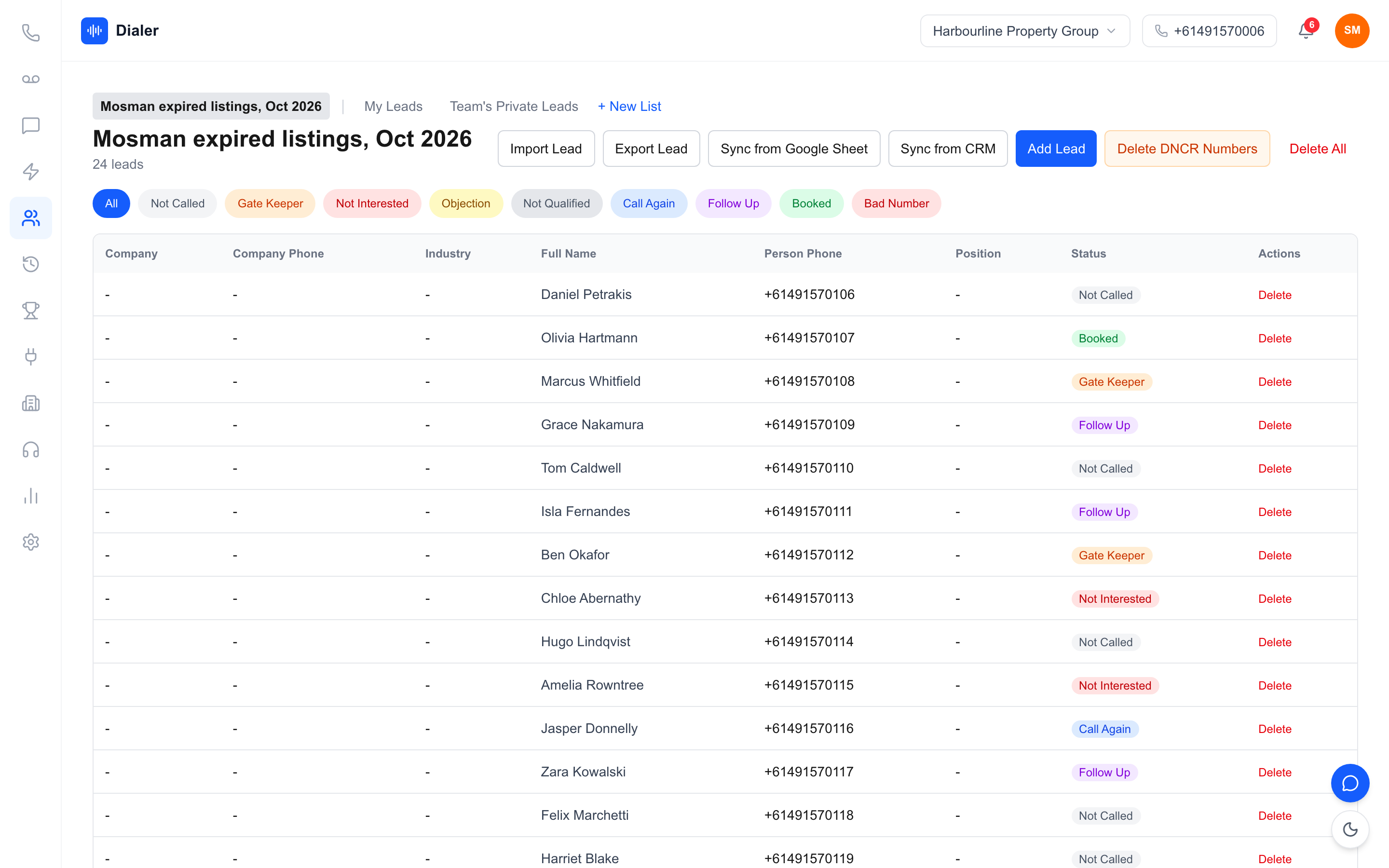
What Veyce imports
Veyce is a power dialler for Australian sales teams, and its lead import accepts CSV, Excel (XLSX), JSON, Word (DOCX), PDF and photos in PNG or JPEG. Spreadsheets are read directly; text is pulled from Word and PDF files, and photos of paper lists go through OCR. Every file then runs through the same rule-based mapping: common header names such as "Mobile", "Contact Number" or "Phone Number" map to the phone field, columns that do not match a known field are folded into the lead's notes rather than dropped, and if a file has no recognisable header row, Veyce scans each row for anything that looks like a phone number or email. There is no AI in this step: it is OCR plus fixed rules, so the same file always maps the same way.
Australian numbers and wash records
Local numbers such as 0455 591 220 do not need a country code, and numbers still missing digits are flagged before a call attempt is made. When you import a file you can record the date it was washed, so the list carries its wash age. Veyce works with your wash: numbers the wash marks as registered are left out of PriceFinder imports, and the Delete DNCR Numbers button clears flagged leads. Veyce does not check numbers against the Register for you.
Plans and sync options
Veyce's pricing lists all integrations on every plan. Lead import is listed as CSV on Solo ($49 a month, 1 seat) and CSV plus Google Sheets on Team ($179 a month, 4 seats), and Growth ($449 a month, 10 seats) names Airtable and calendar sync. If a web form writes into a Google Sheet, you can pull that sheet into a Veyce list by pasting its link. Check the current detail on Veyce's plans and pricing before you choose.
From imported list to booked appointment
Hand clean lists to the dialler
Once a list is clean, reps should not touch a spreadsheet again. In Power Dialler mode, a rep works through the list one call at a time from your team's Australian number, with the lead's details and notes on screen. Veyce includes one dedicated Australian number for the team and assigns a rep their own Australian number on request. See how the power dialler for Australian teams handles the calling side.
Measure which sources book appointments
Because each source sits in its own list, you can compare connect rates and booked appointments by source after a week or two. Drop the sources that waste reps' time and buy more of the ones that book. For a deeper look at the calling side, read our guide to booking more solar appointments with a power dialler.
Start with one source
Do not rebuild everything at once. Pick your messiest source, set up a consistent import for it, and run it for a week. Then add the next. Most solar sales teams find two or three sources cover the bulk of their leads, so a few hours of setup removes most of the daily prep.
Try it on a real list
The fastest test is a real file. Start a free 3-day trial, counted from your first call, with 100 calling minutes and no credit card, import last week's lead file, and see how much of your prep disappears.
Frequently asked questions
What does it mean to automate sales lead importing?
It means replacing the copy, paste and tidy routine with a repeatable import step. Files from each lead source go into your dialler and are mapped to the same fields by fixed rules: phone columns to phone, email to email, extras to notes. Australian numbers are normalised and incomplete ones flagged. The result is a dial-ready list within minutes of a file arriving, with a person still checking the wash date and the first few rows.
Does Veyce use AI to import leads?
No. Veyce's lead import uses OCR to read text from photos of paper lists and rule-based mapping for everything else. A known set of header names maps to known fields, unmatched columns are kept in the lead's notes, and files without headers are scanned for phone numbers and emails. Because the rules are fixed, the same file maps the same way every time, which makes imports predictable and easy to check.
Can I import a photo of a paper lead list?
Yes. Veyce accepts PNG and JPEG photos and reads them with OCR, then maps the text like any other file. Results depend on the photo, so shoot the page flat, in good light, and fill the frame. Clear print reads far better than rushed handwriting. After any photo or PDF import, open the list and spot-check a handful of names and numbers before reps start calling from it.
Does Veyce check my leads against the Do Not Call Register?
No. Veyce does not wash or check numbers against the Register. You wash your list through the Do Not Call Register service or your data provider, then import it. Veyce works with your wash: numbers the wash marks as registered are left out of PriceFinder imports, and the Delete DNCR Numbers button clears flagged leads. You can also record the wash date when you import a file.
Which Veyce plans include Google Sheets lead import?
Veyce's pricing lists all integrations on every plan, and spells out lead import as CSV on Solo and CSV plus Google Sheets on Team. Growth names Airtable and calendar sync. Plans start at $49 a month for Solo, $179 for Team and $449 for Growth. Check the pricing page for the current detail, or test the import you need during the free trial, which runs 3 days from your first call with 100 calling minutes.