To import leads from spreadsheets cleanly, most of the work happens before you click upload. A spreadsheet that looks fine on screen can still hide problems that only show up once reps start calling: mobile numbers that lost their leading zero, names split across the wrong columns, a second tab nobody noticed, or a notes column full of useful context that quietly disappears.
This is a practical, file-level guide for Australian sales teams. It covers how to lay out an Excel or CSV file, the formatting traps that cause failed dials, how to check an import once it lands, and how to keep lists tidy over time. Whatever dialler or CRM you use, these steps will save your reps from calling bad data.
Preparing to import leads from spreadsheets
One header row, one lead per row
The simplest rule is also the most broken: the first row holds column names, and every row after it is one lead. Remove title rows such as "November leads, do not share", blank spacer rows, totals at the bottom and merged cells. Most import tools read the first row as headers, so anything above your real headers will be treated as a lead or will confuse the mapping.
Use plain, common column names
Name columns the way most systems expect: First Name, Last Name (or Full Name), Phone or Mobile, Email, Company, Address, Notes. Avoid creative headers like "Best number to try" or "Client deets". Plain names are far more likely to map automatically, which means less manual matching every time you import leads from spreadsheets.
Put the leads on the first tab
Many importers read only the first worksheet in an Excel workbook. If your leads sit on a tab called "Final list" behind a "Summary" tab, move them to the front or save that tab as its own CSV. One workbook with five tabs of leads should become five files, or five lists, not one import.
Keep useful extras in their own columns
Columns like "Lead source", "Property type", "Best time to call" or "Last contacted" are valuable on a call. Keep each in its own column rather than jamming them into one cell. A good importer will either map them or keep them as notes, and either way the rep sees them when the call connects.
Formatting traps that break dialling
Excel strips the leading zero
This is the most common problem when teams import leads from spreadsheets in Australia. Type 0412 345 678 into a cell formatted as a number and Excel stores 412345678. The number now has nine digits and cannot be dialled as an Australian mobile. Before you paste or type numbers, format the phone column as Text. If the damage is already done, a formula such as ="0"&A2 restores the zero for nine-digit mobiles, but check landlines separately.
Scientific notation and stray characters
Long numbers with a country code, such as 61412345678, can turn into 6.14123E+10 in Excel. Format the column as Text before saving. Also watch for numbers with letters or labels in the same cell, like "M: 0412 345 678" or "0412 345 678 (after 5pm)". Move the label into a notes column so the phone cell holds only the number.
Several numbers in one cell
Lists from data providers sometimes hold "0412 345 678 / 03 9123 4567" in a single cell. Split them into separate columns, such as Mobile and Landline, using Excel's Text to Columns feature. A dialler can only call one number per field, and a cell with two numbers will usually fail or call the wrong one.
CSV encoding and commas
When you save as CSV, choose "CSV UTF-8" so names with accents or apostrophes survive. Commas inside a cell, common in addresses, are fine as long as the program that saved the file wrapped the cell in quotes, which Excel and Google Sheets do automatically. Problems usually come from hand-edited CSV files, so avoid editing them in a plain text editor.
Checking leads you import from spreadsheets
Count the rows in and out
Whenever you import leads from spreadsheets, note how many leads the file holds first, then compare it with the count in the new list. A big gap points to blank rows, a header problem or rows without a phone number. A small gap is often fine, but you should know why it happened.
Spot-check ten leads
Open ten leads at random and compare them with the original file. Is the phone number in the phone field? Did the full name come across? Did your extra columns land somewhere the rep can see them? Ten checks take two minutes and catch nearly every mapping mistake.
Look for flagged or incomplete numbers
A decent dialler marks numbers it cannot call. Filter for them, fix the source file, and re-import or edit those leads directly. Typical causes are a lost leading zero, a missing area code on a landline, or a number with too few digits.
Wash before import, not after
If you are making telemarketing calls, wash the file against the Do Not Call Register before importing it. The Register's washing process overview explains how washing works and how long results can be relied on. Record the date you washed the file, so anyone who picks up the list later knows how old the wash is.
Veyce: importing spreadsheets into a power dialler
Files and mapping
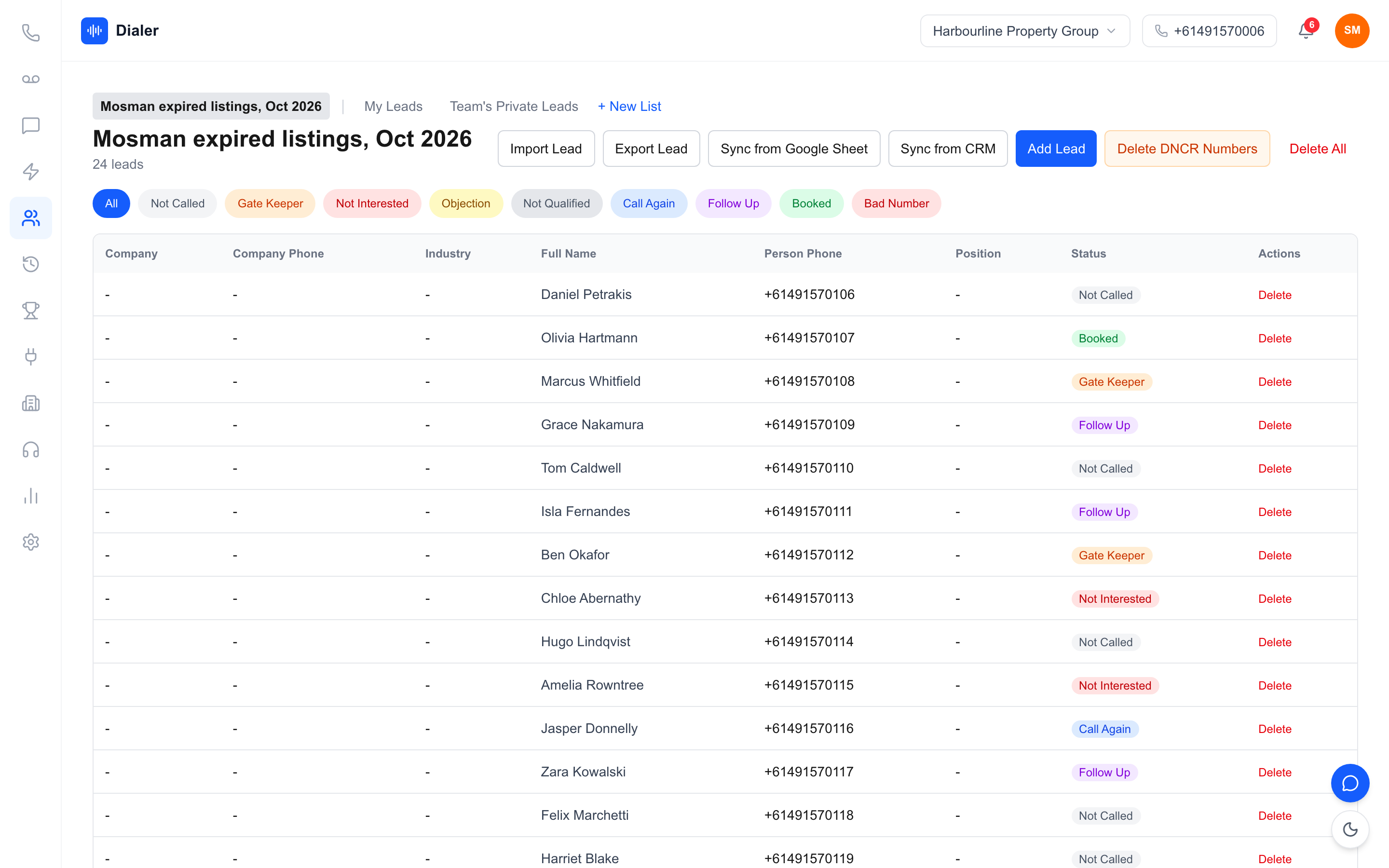
Veyce is a power dialler for Australian sales teams, and it reads Excel (XLSX and XLS), CSV and JSON files directly, plus Word, PDF and photos of printed lists through text extraction and OCR. Mapping is rule-based, not AI. Veyce recognises dozens of common header names, so "Mobile", "Mobile Number", "Contact Number" and "Phone #" all land in the phone field, and spacing or underscore variants like "phone_number" are handled too. Columns that do not match a known field are folded into the lead's notes rather than dropped. If there is no header row it recognises, Veyce scans each row for phone numbers and emails. Veyce reads the first tab of an Excel workbook, and files can be up to 10 MB.
Australian numbers and incomplete rows
Local formats such as 0455 591 220 are converted for dialling without you adding +61. Numbers that are still missing digits, including mobiles that lost their leading zero in Excel, are flagged before a call attempt is made, so you can fix them instead of wasting dials. Files with "Surname" and "Initials" columns, the way PriceFinder-style property exports arrive, are combined into a full name, which helps real estate agencies working from property data.
Wash dates and consent columns
When you import, you can record the date the file was washed, and the list shows its wash age. Veyce works with your wash: numbers the wash marks as registered are left out of PriceFinder imports, and the Delete DNCR Numbers button clears flagged leads. Veyce does not wash or check numbers itself. Files can also carry consent columns such as "Consent source" and "Consent date", or you can stamp one consent source on every lead in the file.
Keeping imported lead lists clean over time
One list per source or campaign
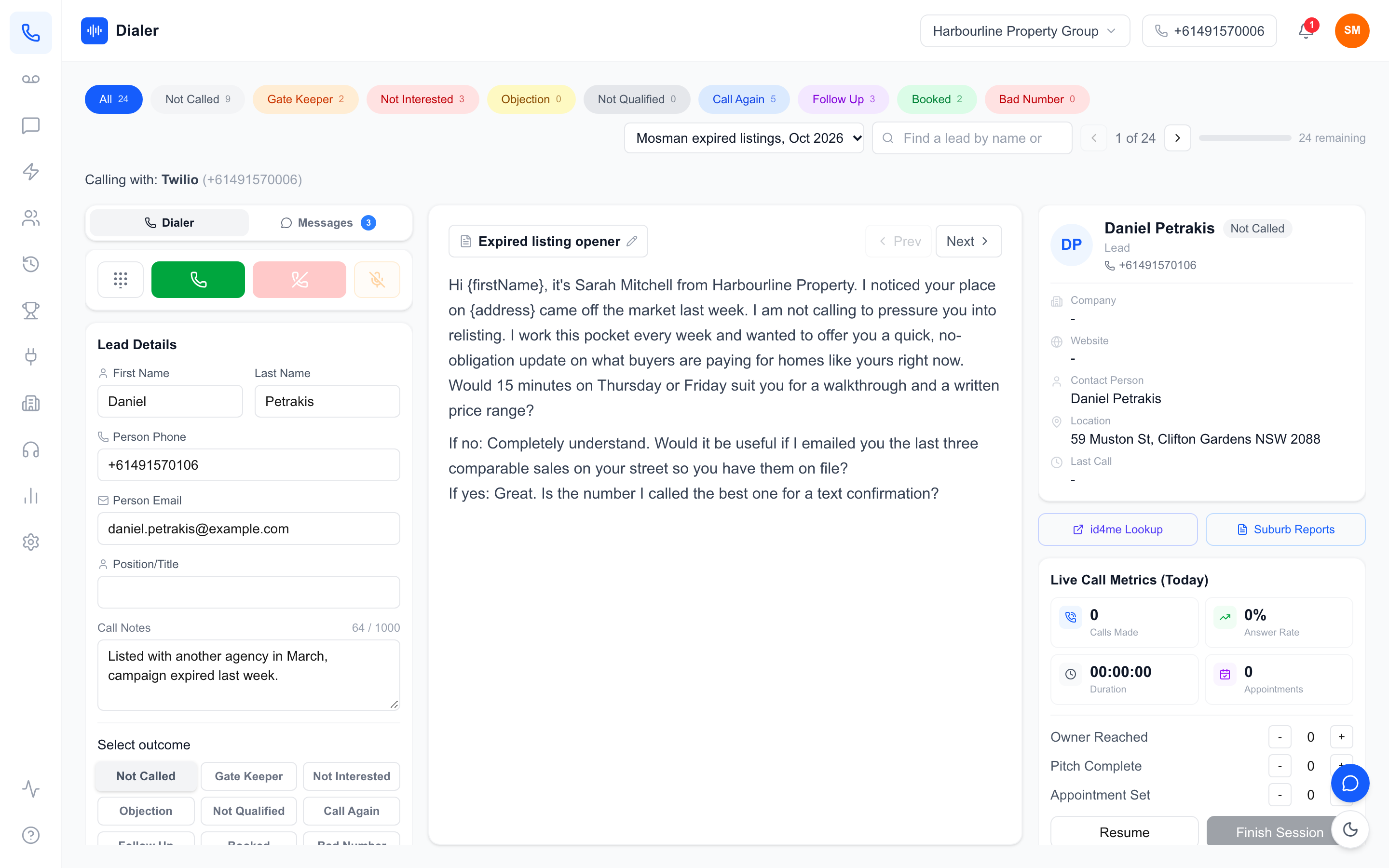
Each time you import leads from spreadsheets, create a new list for the batch, such as one per data provider, suburb or campaign, rather than adding everything to one long list. It keeps reporting honest and makes it easy to archive a list once it has been worked. In Veyce, lists are shared across the team, and any list can be exported back out as CSV.
Re-import rather than hand-edit
If a source file was wrong, fix the spreadsheet and import it into a fresh list instead of editing hundreds of leads one by one. Your spreadsheet stays the single source of truth, and the next import inherits the fix.
Choose a dialler that forgives messy files
Every team that regularly imports leads from spreadsheets gets a messy file eventually. When you compare tools, test the import with a real, untidied spreadsheet, not a perfect sample. Our checklist for choosing a power dialler covers what else to test. Veyce's pricing lists all integrations on every plan, with lead import listed as CSV on Solo and CSV plus Google Sheets on Team; see Veyce plans for the current detail, or read how the Australian power dialler works once your leads are in.
Test with your own spreadsheet
Start a free 3-day trial, counted from your first call, with 100 calling minutes and no credit card, import a real spreadsheet, and check the mapping against the steps above before your team dials a single lead.
Frequently asked questions
What is the best file format to import leads from spreadsheets?
CSV saved as CSV UTF-8 is the safest choice because almost every dialler and CRM reads it the same way. Excel files work well too, as long as the leads sit on the first tab with one header row. Veyce reads both directly, along with JSON, Word, PDF and photos of printed lists. Whichever format you use, format phone columns as Text first.
Why are my Australian mobile numbers missing the leading zero?
Excel treats a phone number like 0412 345 678 as a number and drops the zero, leaving nine digits that cannot be dialled. Format the column as Text before typing or pasting numbers. If the zeros are already gone, a formula such as ="0"&A2 restores them for mobiles. Veyce flags numbers that are still missing digits so they are fixed rather than dialled.
Do my column names have to match exactly?
Not exactly, but plain names help. Veyce uses rule-based mapping with a list of common header names, so Mobile, Mobile Number, Contact Number and Phone # all map to the phone field, and spacing or underscore variations are handled. Columns it does not recognise are kept in each lead's notes rather than dropped. Unusual headers like Client deets are best renamed before import.
Can I import leads from a Google Sheet instead of a file?
Yes. In Veyce you can paste a Google Sheets link into a lead list and pull the rows in, as long as the first row holds column headers and Google is connected in Integrations. Veyce's pricing lists all integrations on every plan, and spells out lead import as CSV on Solo and CSV plus Google Sheets on Team. Check the pricing page for the current detail.
Should I wash my spreadsheet before or after importing it?
Before. Wash the file against the Do Not Call Register through the Register service or your data provider, then import the washed file and record the wash date. Veyce does not wash or check numbers itself. It works with your wash: numbers the wash marks as registered are left out of PriceFinder imports, and the Delete DNCR Numbers button clears flagged leads from a list.