A Google Sheets dialler integration makes sense for a lot of Australian sales teams, because the sheet is already where leads live. Web forms write enquiries into it, a team lead pastes in a purchased list, and an admin tidies it up between calls. The problem starts when reps copy numbers out of the sheet and into their phones or a dialler by hand, and the sheet and the calls drift apart.
This guide explains what a Google Sheets dialler integration actually does, the different ways the connection can work, how to design a sheet so it imports cleanly, and the privacy and access points to sort out before you connect anything. It finishes with how the Google Sheets sync works in Veyce, so you can judge whether it suits your team.
What a Google Sheets dialler integration actually does
Three ways a sheet and a dialler can connect
When a dialler says it "integrates with Google Sheets", it usually means one of three things. A one-off import reads the sheet once, like uploading a CSV. A pull sync lets you point the dialler at a sheet and bring its rows into a lead list whenever you choose. A two-way sync also writes call outcomes back into the sheet. Ask which one a vendor means, because the difference decides how your team works day to day.
Why teams keep leads in Sheets
Google Sheets is free with Google Workspace, everyone already knows how to use it, and many tools can write into it: website forms, Facebook lead ad connectors, landing page builders and automation tools. For a small team without a full CRM, a shared sheet is often the de facto lead database, and that is fine as long as the path from sheet to dialler is reliable.
Where the sheet should stop and the dialler should start
The cleanest split is simple: the sheet is where leads arrive and get organised; the dialler is where calls happen and outcomes are recorded. Reps should never need to open the sheet during a calling session. If they are flicking between tabs to find a number or read a note, the integration is not doing its job. Outcomes such as booked, callback or not interested belong in the dialler too, where managers can report on them, rather than in a colour-coded column that only one person understands.
Designing a sheet that syncs cleanly
Headers in row one, data from row two
Put column headers in the first row and nothing above them: no title, no instructions, no merged banner cells. Use plain names such as Full Name, Phone, Email, Company, Suburb, Source and Notes. Dialler imports read row one as headers, so a decorative title row is the single most common reason a Google Sheets dialler integration maps badly.
Format phone numbers as plain text
Select the phone column and choose Format, then Number, then Plain text before data goes in. Otherwise Sheets may treat 0412 345 678 as a number and drop the leading zero. Keep one number per cell; if leads have a mobile and a landline, give each its own column.
Use one tab per list, or a clear range
If one spreadsheet holds several campaigns, give each its own tab, or keep them in clearly separate blocks so you can sync a specific range such as A1:H500. Mixing campaigns in one block of rows makes it hard to sync only the leads you want into a given list.
Decide how new rows are handled
Sheets that grow every day, such as a form response sheet, need a plan. Either sync into a fresh lead list for each batch, or set the range to cover only the rows added since the last sync. Write the rule down so whoever runs the sync next week does it the same way, and nobody ends up calling the same enquiry twice. Start a free 7-day Veyce trial with 50 calling minutes included.
Access, privacy and data hygiene
Who can see the sheet
A lead sheet holds personal information: names, phone numbers, sometimes addresses. Share it only with the people who need it, avoid "anyone with the link" sharing, and remove access when someone leaves the team. The Australian Privacy Principles published by the OAIC are a useful reference for how businesses covered by the Privacy Act should handle and secure personal information.
Connect with the right Google account
Most integrations connect through a Google account using sign-in permission rather than a password. Use an account that will stay with the business, such as a shared admin account or the owner's work account, not a rep's personal Gmail. If that person leaves and their account closes, the connection breaks.
Wash before the sheet reaches the dialler
If you make telemarketing calls, wash numbers against the Do Not Call Register before they are synced for calling. The Register's industry FAQs cover who needs to wash and how. A sheet that collects consented web enquiries is different from a purchased list, so keep them on separate tabs and record where each lead came from.
Veyce: Google Sheets sync in a power dialler
How the sync works
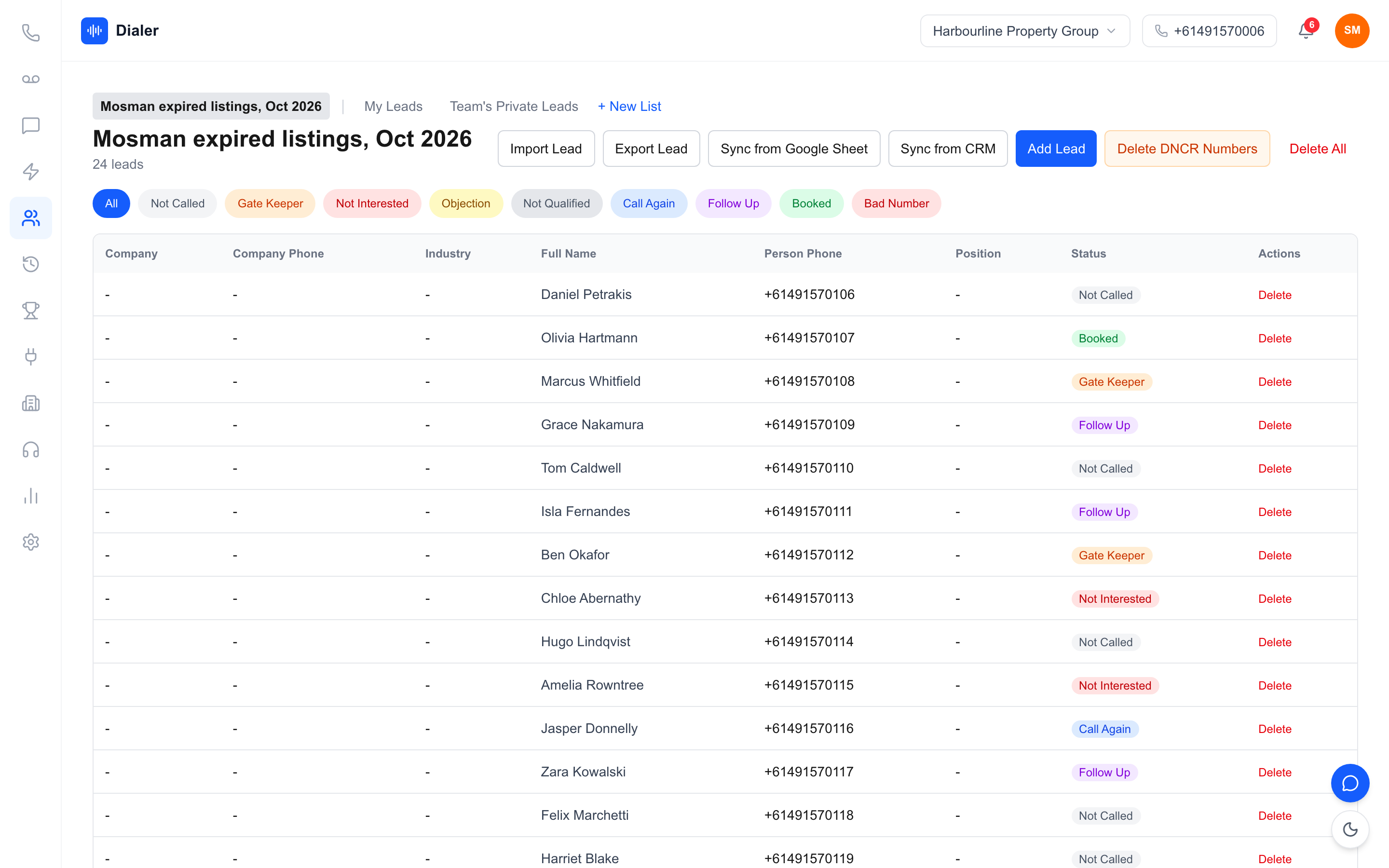
Veyce is a power dialler for Australian sales teams. To use its Google Sheets integration, an admin connects Google once under Integrations, then opens a lead list, chooses Sync from Google Sheet, and pastes the sheet's link or ID. The default range is A1:Z1000 and can be changed to any range. Veyce pulls the rows in, maps them with the same rule-based header matching it uses for file imports, and reports how many leads were imported. The first row should hold column headers. Each sync pulls the rows in the range you set, so for a growing sheet, sync new rows into a fresh list or narrow the range.
What happens to the columns
Header mapping is rule-based, not AI. Common names such as Phone, Mobile, Contact Number, Full Name, First Name and Email map to the right fields, spacing and underscore variants are handled, and columns Veyce does not recognise are folded into each lead's notes, so extras like "Quoted price" or "Best time to call" still appear on the rep's screen. Local Australian numbers are converted for dialling without +61, and numbers still missing digits are flagged before a call attempt is made.
Which plans include Google Sheets
Veyce's pricing lists all integrations on every plan. Its plan cards spell out lead import as CSV on Solo ($49 a month) and CSV plus Google Sheets on Team ($179 a month, 4 seats), and Growth ($449 a month, 10 seats) names Airtable and calendar sync. If Sheets sync is central to how you work, check Veyce's pricing page for the current detail or test it in the free trial, which runs for 3 days from your first call and includes 100 calling minutes.
Getting started with a Google Sheets dialler integration
Run a small test first
Copy 20 rows from your live sheet into a test tab, sync that range into a test list, and compare the leads with the sheet. Check phone numbers, names and the notes field. Fix the sheet layout, not the leads, so every future sync benefits. Once the test list looks right, sync the live range into a real list, and have one rep work it for a session before the whole team starts. Any mapping surprise shows up in the first few calls, while it is still cheap to fix.
Connect your scripts and calendar too
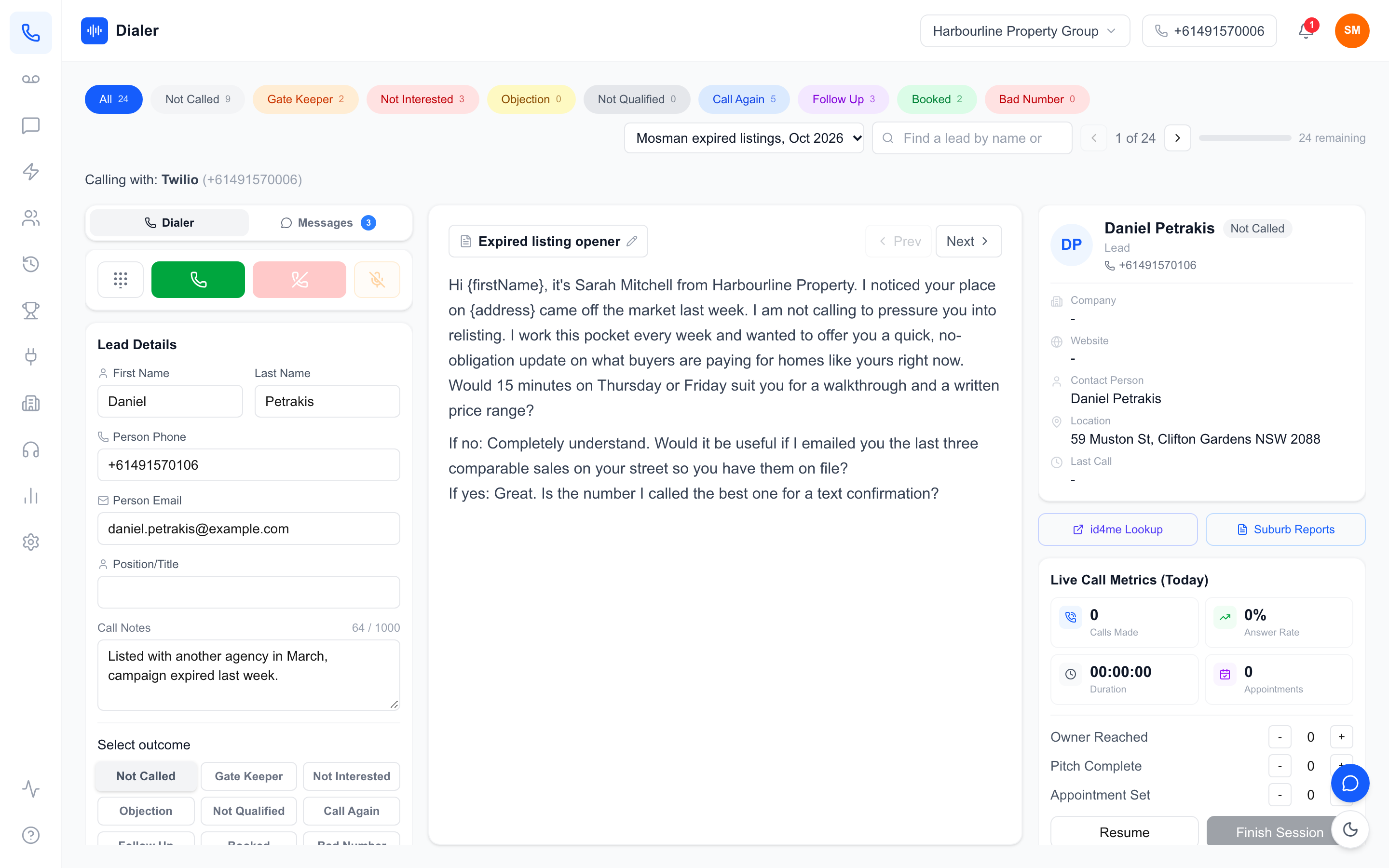
Sheets is not the only Google link worth making. In Veyce, the script panel can sync a calling script from a Google Doc, so after a manager edits the doc, one sync gives every rep the update, and Google Calendar can be connected as well. Read how the Veyce power dialler brings the list, the script and the call into one screen.
Compare against what you need
If you are still choosing a tool, our guide to sales dialler software in Australia covers what outbound teams should test beyond integrations, including number setup, recording and reporting.
Try it with your own sheet
Start a free trial with 100 calling minutes and no credit card (it runs for 3 days from your first call), connect Google, and sync a real sheet into a list. Within a few minutes you will know whether your sheet layout and the sync fit how your team calls.
Frequently asked questions
What is a Google Sheets dialler integration?
It is a connection that lets a dialler read leads straight from a Google Sheet instead of you exporting and uploading a file. Depending on the tool, it may be a one-off import, a sync you run whenever you want new rows, or a two-way link that writes outcomes back. In Veyce, you connect Google once, paste a sheet link into a lead list, and Veyce pulls the rows into that list.
Which Veyce plan includes Google Sheets?
Veyce's pricing lists all integrations on every plan. Its plan cards spell out lead import as CSV on Solo and CSV plus Google Sheets on Team, which is $179 a month with four seats. Growth, at $449 a month with ten seats, names Airtable and calendar sync. Check the pricing page for the current detail, or try the sync during the free trial, which gives you 100 calling minutes over 3 days from your first call.
How should I lay out my Google Sheet for a dialler?
Put plain column headers in row one, such as Full Name, Phone, Email and Notes, with no title rows above them. Format the phone column as plain text so leading zeros stay, keep one number per cell, and give each campaign its own tab or range. Veyce maps common headers automatically using fixed rules and keeps unrecognised columns as notes on each lead.
Will syncing the same sheet twice create duplicate leads?
Each Veyce sync pulls the rows in the range you set, so syncing the same range into the same list again can bring those rows in again. For a sheet that keeps growing, such as form responses, either sync each new batch into a fresh list or narrow the range to the rows added since the last sync. Agree on one rule and write it down for the team.
Does the Google Sheets sync check numbers against the Do Not Call Register?
No. Veyce does not wash or check numbers against the Register. Wash purchased or cold lists through the Register service or your data provider before they go into the sheet you sync. Veyce works with your wash: numbers the wash marks as registered are left out of PriceFinder imports, and the Delete DNCR Numbers button clears flagged leads from a list.