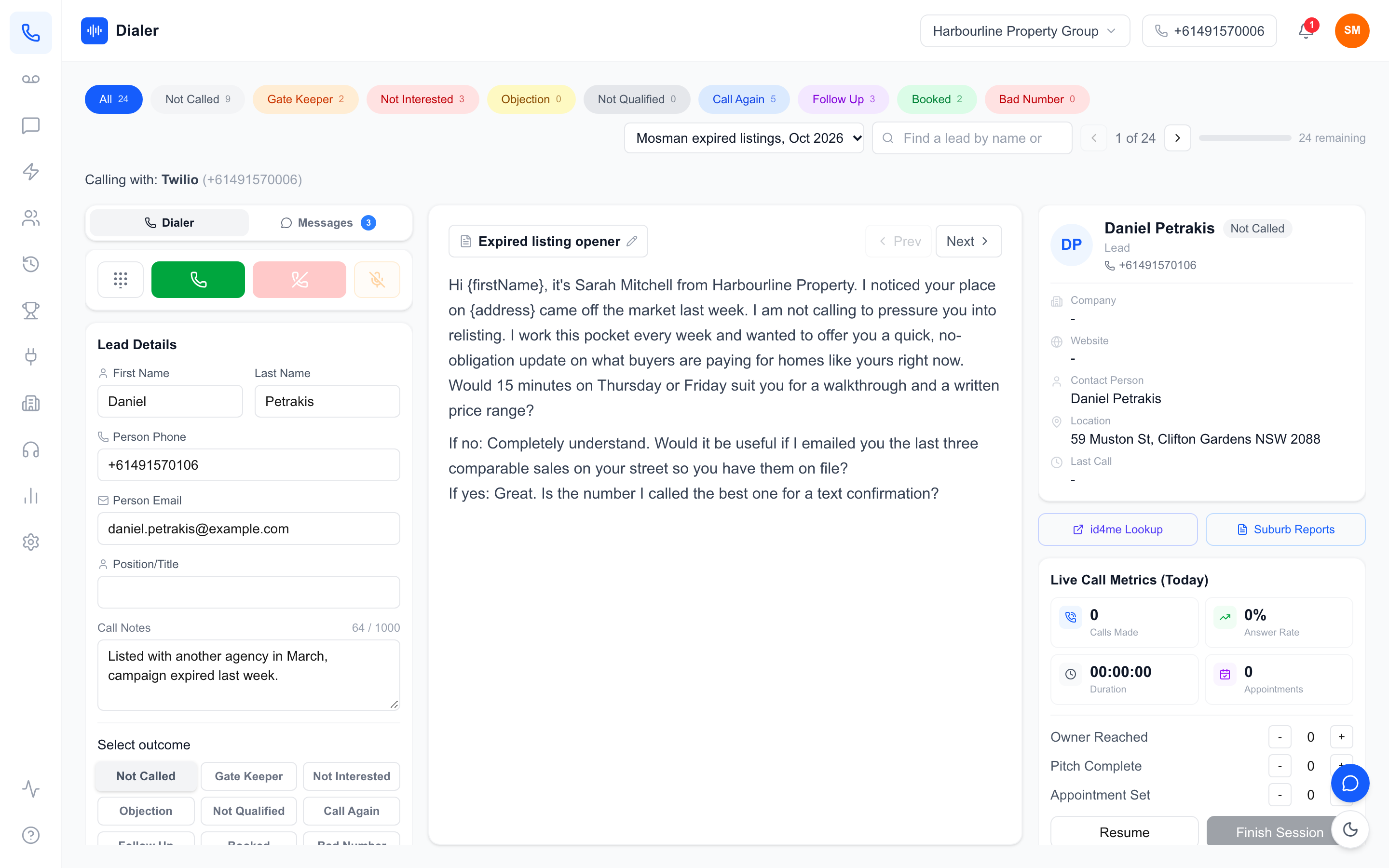
Google Docs calling scripts are how most small Australian sales teams keep their talk tracks: one shared document, edited by the manager, read by every rep. It is a sensible choice. Docs is free, everyone already knows it, and comments make script reviews easy. The trouble starts on the call itself, when the rep has the dialler in one window, the lead in another and the script buried in a third tab.
This guide covers both halves of the problem. First, how to write a calling script in Google Docs that reps will actually follow, with a layout you can copy. Second, how to format that document so it survives being pulled into a dialler, and how to keep one version in front of the whole team when the script changes. The examples assume a short outbound call aimed at booking a meeting or a callback, which is what most teams using a power dialler are doing.
Why teams keep calling scripts in Google Docs
There are dedicated script tools, but Docs keeps winning in small teams for practical reasons.
One editable source of truth
A single shared document means there is only one current script. When the manager rewrites the opening on Monday, nobody is reading last month's version from a printout or a PDF in their downloads folder. The risk is that reps copy the text into their own notes and drift, which is why the script needs to reach the dialler from the same document.
Comments and suggestions for script reviews
Suggestion mode lets reps propose wording they have tested on real calls without overwriting the script. A weekly review where the manager accepts or rejects suggestions turns the script into something the team owns rather than something imposed on them.
Version history when a change backfires
Every script change is a small experiment. If a new opening line produces more hang-ups, version history lets you see exactly what changed and restore the previous wording in a few clicks.
How to write a calling script in Google Docs that reps will use
A script is a guide for a conversation, not a speech. The best ones are short, broken into clear stages and written the way people talk.
Start with the call's single goal
Write the goal at the top of the document in one line: book a 15-minute appraisal, confirm a callback time, qualify for a quote. Every line below it should move the call towards that goal. If a paragraph does not, cut it.
Opening, reason, questions, close
Most outbound scripts need four stages. The opening says who you are and who you are calling for. The reason for the call gives the prospect a specific, relevant reason to keep listening. Two or three qualifying questions find out whether there is a fit. The close asks for the next step in plain words. Australia's telemarketing rules include requirements about identifying yourself and your business on the call, so read the Do Not Call Register industry standards and build those details into your opening rather than leaving them to memory.
Write objection responses as short branches
List the four or five objections your reps hear most ("send me an email", "not interested", "we already have someone") with a one or two sentence response under each. Keep each response short enough to say naturally. Our cold calling tips for Australian teams include more on handling the common ones.
A layout you can copy
Here is a skeleton that works well in a dialler's script panel. Each stage starts with a number typed by hand, and the last line is a single tip for the rep. Start a free 7-day Veyce trial with 50 calling minutes included.
1. Opening
Hi, is that [first name]? It's Sam from Harbour Property, I'll be quick.

2. Reason for the call
We sold two homes on your street this year and I'm calling owners nearby
to see whether a free price update would be useful.

3. Questions
Have you thought about what the place might be worth now?
Are you planning any changes in the next year or so?

4. Close
I can drop a written appraisal over on Thursday or Friday. Which suits?

5. Objections
Not interested: No problem at all. Would a written estimate by text be easier?

Pro Tip: Pause after the reason for the call. Let them talk first.
Formatting Google Docs calling scripts so they survive the sync
When a dialler imports a Google Doc, it usually reads the text, not the styling. Formatting choices that look tidy in Docs can disappear or scramble on the way in, so format for plain text.
Type section numbers by hand
Google Docs' automatic numbered lists and bullet points are styling, not text, so the numbers and bullets often do not come across when the document's text is pulled into another tool. Type "1. Opening" as ordinary text instead. In Veyce, any line that starts with a number, a full stop and a space is shown as a highlighted section heading in the script panel.
Keep everything out of tables
Two-column tables (objection on the left, response on the right) look neat in Docs, but text inside tables may not be carried over by a plain-text import, and Veyce's sync reads the document's paragraphs, so keep the whole script in ordinary paragraphs. Write objections as a label followed by a colon and the response, as in the layout above.
Put the Pro Tip last
Veyce shows a line starting with "Pro Tip:" as a highlighted tip box under the script. Make it the very last line of the document, and keep it to one sentence, because anything after it is not shown in the panel.
Keep it short enough to read mid-call
Bold, colours, comments and images are left behind in a text import, so do not rely on them to signal what matters. Rely on short lines and clear stage headings instead. A script that fits on one screen without scrolling is easier to follow while someone is talking to you.
Veyce: syncing a Google Docs script into the dialler
Veyce, the Australian power dialler, shows the team script in the centre of the dialler, between the lead list and the call controls, and can pull that script straight from a Google Doc.
Connect Google and paste the link
The account owner connects Google once on the Integrations page. Then, in Settings under Dialer Script, they paste the Google Doc's link (or its ID) and click Sync. Veyce reads the document's text and title through the connected Google account, saves them as the team script and shows when it was last synced. The Google account you connect needs access to the document.
Updating the script for the whole team
Sync is on demand, not live: edit the Google Doc, then click Sync again in Settings to pull the new version. Reps' diallers pick up the updated team script shortly afterwards, between calls. The owner can also edit the synced text directly in Settings, but the next sync replaces it with the document's text, so make lasting changes in the Doc. That keeps Google Docs as the single source of truth and the dialler as the place reps read it.
Personal scripts and reviewing calls
Any rep can click the pencil beside the script title and write a private personal script, which replaces the team default for them only. That is useful for experienced reps testing their own wording, but it also means they will not see team updates until they clear it, so check during script reviews.
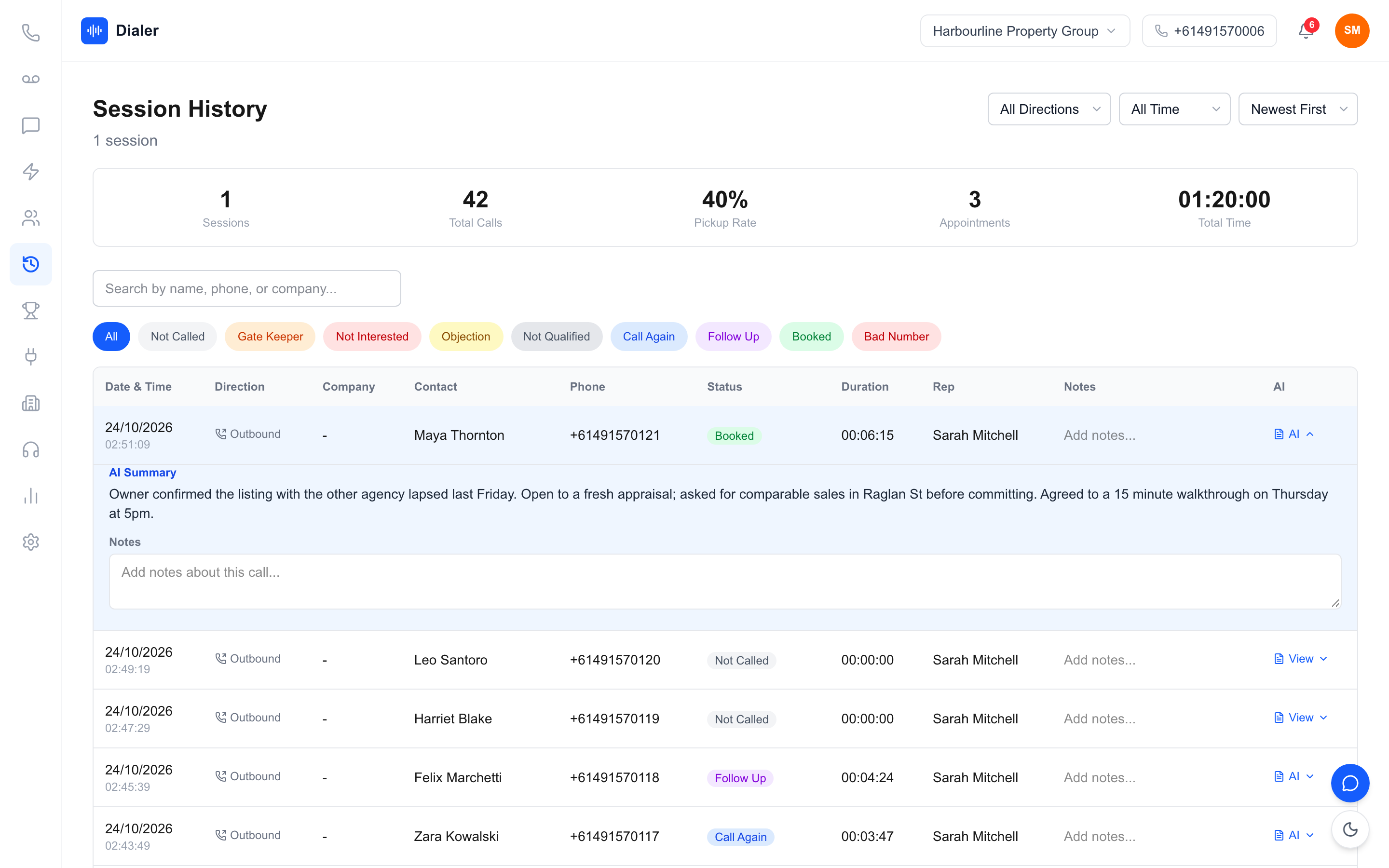
To judge a script change, compare sessions before and after it. Recorded calls get an AI transcript and summary after the call, so you can read how prospects responded to the new opening without listening to every recording; our post on AI call summaries for sales teams explains the review routine. Plans start at $49 a month for one seat, and the full list is on the Veyce pricing page.
Make the script part of the call, not a separate tab
Google Docs calling scripts work best when the document is where the script is written and reviewed, and the dialler is where it is read. Write short stages, type your section numbers, keep tables out, and put one tip at the end. Then sync it so every rep sees the same words on every call.
If you want to see your own script inside a dialler, paste your Google Doc into a free Veyce trial: 3 days from your first call, with 100 calling minutes and no card. The Australian power dialler page shows the rest of the dialler around it.
Frequently asked questions
Can I use a Google Doc as my calling script in a dialler?
Yes, if the dialler can import it. In Veyce, the account owner connects Google on the Integrations page, then pastes the Google Doc link into Settings under Dialer Script and clicks Sync. Veyce reads the document's text and title and shows it as the team script in the dialler. The connected Google account needs access to the document, and the script updates when you click Sync again after editing.
Does the script update automatically when I edit the Google Doc?
Not in Veyce. Sync is on demand: after you edit the document, click Sync in Settings to pull the new text. Reps then see the updated team script in the dialler shortly afterwards, between calls. On-demand sync is deliberate in practice, because it lets a manager finish and check an edit before it reaches the team, rather than having half-written changes appear on screen mid-session.
Why did my numbered list disappear after syncing?
Google Docs' automatic numbering and bullets are formatting rather than text, so they often do not come across when only the text is imported. Type the numbers yourself, for example "1. Opening" and "2. Reason for the call". Veyce shows any line that starts with a number, a full stop and a space as a section heading in the script panel, which gives reps the same structure without relying on Docs formatting.
How long should a cold calling script be?
Short enough to read without scrolling while someone is talking to you. For a booking call, that usually means an opening of one or two sentences, a single reason for the call, two or three qualifying questions, a one-line close and short responses to the four or five objections reps hear most. If reps start skipping sections, the script is probably too long, and the review should cut rather than add.
Can each rep have their own script?
In Veyce, yes. A rep can click the pencil next to the script title and write a personal script that replaces the team default for them only. It stays private and does not change the shared script. Managers should check for personal scripts during reviews, because a rep using one will not see changes to the team script until they clear their own version.